Projects and Audio
Add Cues and Edit Track Details
Create non-audio cues and add the practical information an operator and backstage team need during a performance.
Use a cue for a non-audio running-order event. Use the track-row drawer in Edit Mode to add the details that make each audio track easy to run and easy to understand backstage.
Add a non-audio cue
Cues are useful for an entrance, announcement, lighting hold, or other running-order event that should be visible without playing an audio file. They appear in the playlist and Viewer running order, but do not have a waveform or support Analyze, Prepare, Normalize, playback-source selection, or rehearsal checkpoints.
- Open the intended playlist and stop playback before changing the running order.
- Select New Cue in the Playlist Tracks/Cues toolbar. Devant adds a cue row with no source audio.
- Switch to Edit Mode and open the cue row's detail drawer. Replace the default title with a concise instruction, then add any relevant show context.
Edit an audio track
- Switch to Edit Mode and find the track in Playlist Tracks/Cues.
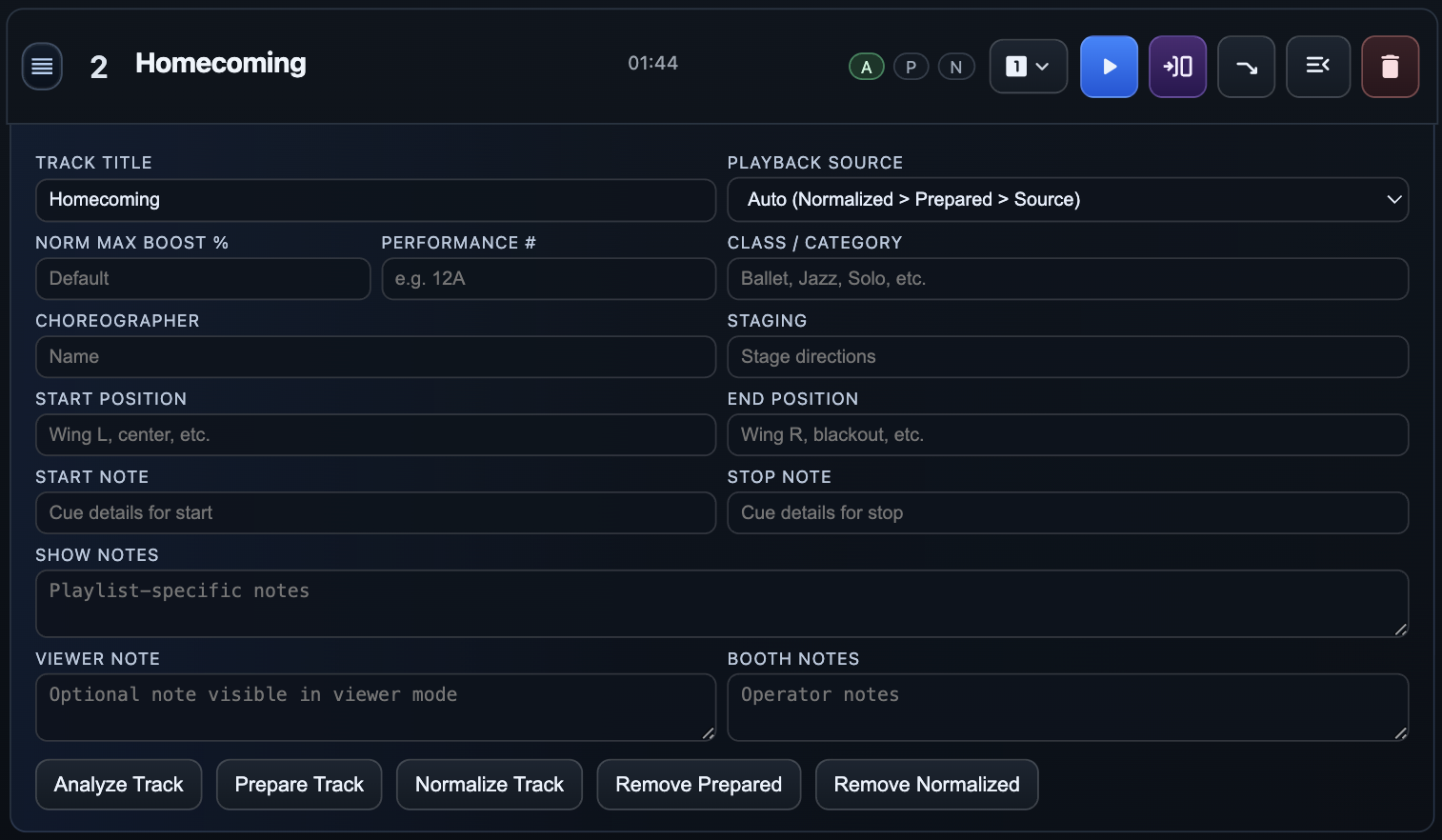
- Use the row's detail control to open its drawer, then update the fields that help the operator or backstage team identify the routine.
- Close the drawer when finished. The saved details travel with the project and update the Viewer on the next published state.
Information worth adding
- Track Title and Performance # for a clear running order.
- Class/Category and Choreographer when they help identify the routine.
- Start Position and End Position when backstage staff need a concise staging reference.
- Viewer Note for the short message staff and chaperones should see in the Viewer.
- Start Note, Stop Note, Show Notes, Booth Notes, and Staging for the desktop project when they are useful to the operating team.
Choose the right audience for each note
The Viewer receives the title, performance number, class/category, choreographer, start and end positions, and Viewer Note. Keep those fields concise enough to scan quickly on a backstage display. Booth, show, start, stop, and staging notes remain in the desktop project for the operating team.
The drawer also contains Playback Source and Norm Max Boost %. Change those only when a track needs an intentional exception from the playlist's normal audio workflow.
Keep live information concise
The best notes answer an immediate live question. Use short labels and instructions rather than paragraphs that are difficult to scan from the booth or a backstage display.