
Projects and Audio
Choose an Audio Output and Playback Source
Confirm where sound is playing and choose whether a track uses its original, prepared, or normalized media.
Before an event, confirm the active audio output in Settings and test it through the real sound path. Leave a track on Auto unless there is a clear reason to choose a specific available source.
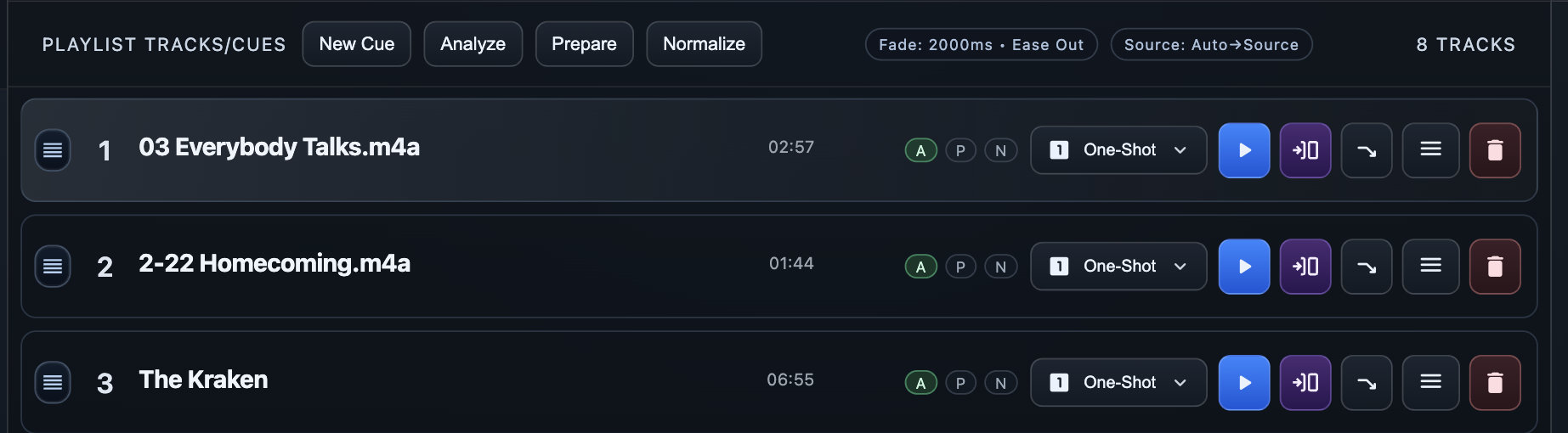
Confirm the playback output
- Open Tools > Settings > Audio.
- Select Refresh Output and confirm the device shown under Current Output.
- When Devant follows the system default, change the speakers or headphones in your computer's sound settings, then select Refresh Output again.
- When Preferred Output is available, choose a specific device and select Apply Selection only when the production needs Devant to target that device.
- Play a representative track through the event sound path before doors open.
Result: The Audio settings view identifies the output Devant is using for playback.
Understand playback sources
Open a track's editor in Edit mode and use Playback Source to make a track-specific choice. Devant shows only source options that are currently available for that track.
- Auto (Normalized > Prepared > Source) Uses the best available version in that order. This is the recommended default after normal preparation and testing.
- Normalized Uses the loudness-adjusted media created by Normalize. Choose it only after approving the normalized result for the production.
- Prepared Uses the playback-ready media created by Prepare without applying a normalized version.
- Source Uses the imported original file. This is useful for comparison or a deliberate original-media choice, but it should still be tested through the event path.
Prepare and normalize intentionally
- Select Analyze to read the imported media and update readiness information.
- Select Prepare to create playback-ready media for the tracks that need it.
- Select Normalize when the production needs loudness-adjusted playback, choose the tracks and target loudness, then select Run Normalize.
- Choose Loudness Match (Transparent) when preserving the source dynamics is important. Choose Loudness Leveling (Dynamic) only when source levels vary widely and stronger leveling is intentional.
- Audition the result, then confirm the intended Playback Source for any track that should not remain on Auto.
Verify after opening a package archive
Prepared and normalized artifacts are created for the current local project context. After opening a Devant Package or relocating source audio, run Analyze and Prepare again as needed, then test the selected source before rehearsal or recital.