
Account and Support
Sign In, MFA, and Device Access
Recover sign-in access, protect the account with an authenticator app, and move access safely between computers.
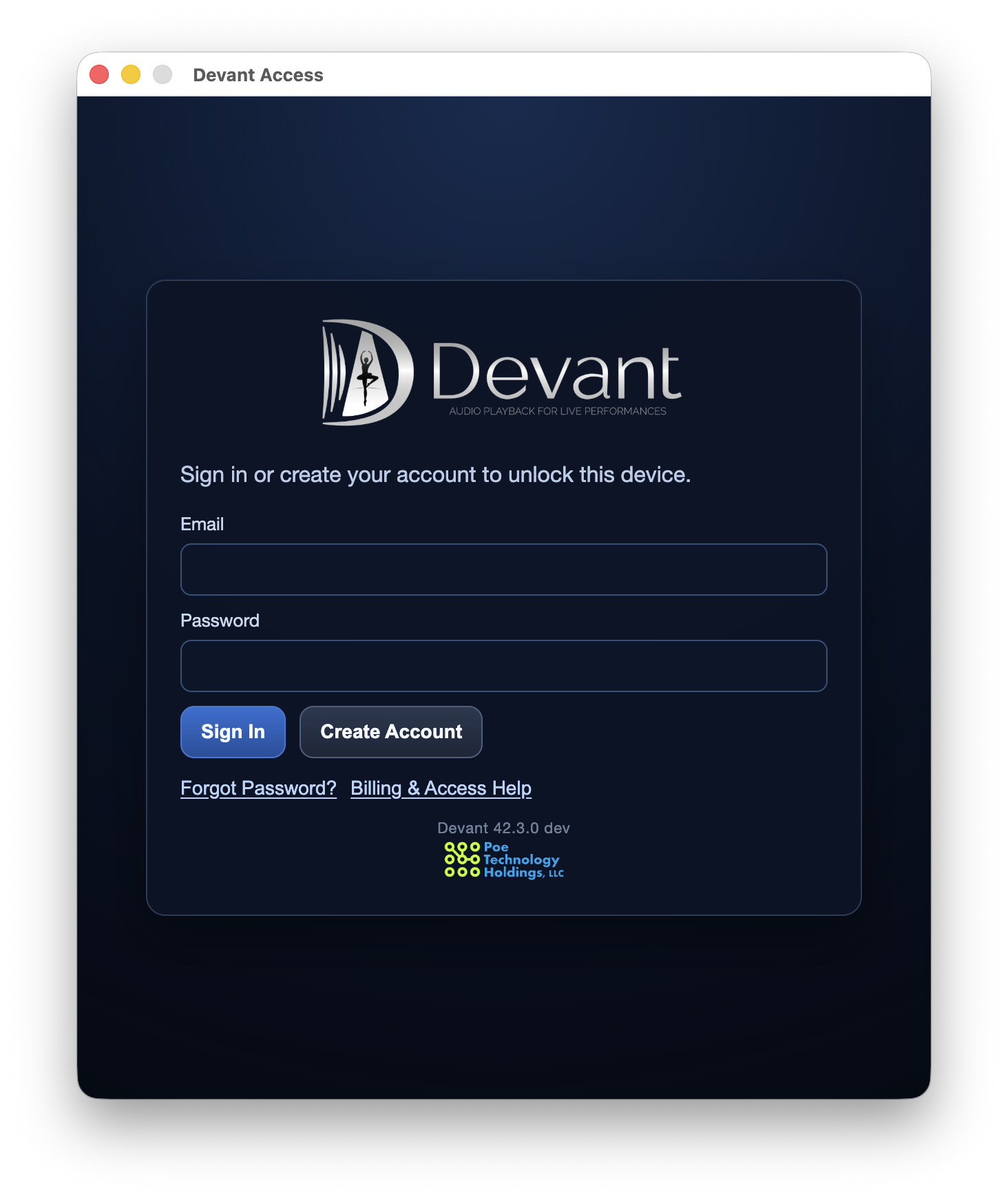
Use Forgot Password? for password recovery and Cannot Access Authenticator? when you cannot complete MFA. From the desktop app, use the Account menu to transfer access to the current computer or refresh access after a recent change.
Reset a password
- On the Devant Sign In view, select Forgot Password?.
- Enter the email address used for the Devant account and submit the request.
- Open the password-reset instructions sent to that email address. The secure browser page asks you to choose and confirm a new password.
- Return to Devant and sign in with the updated password.
Result: Devant returns to the sign-in flow without revealing whether an account exists for an email address.
Use multi-factor authentication
MFA adds an authenticator-app code after your password. When MFA is enabled during account creation, complete setup after email verification. Otherwise, Devant may recommend enrollment after a successful password sign-in.
- Select Enroll when Devant offers MFA setup.
- Scan the displayed QR code with an authenticator app.
- Enter the current authenticator code and select Complete Enrollment.
- For later sign-ins, enter the current authenticator code when Devant asks for verification.
If the authenticator is unavailable
- On the authenticator-code screen, select Cannot Access Authenticator?.
- Describe the access problem and select Send Support Request.
- Wait for the support review before submitting another request, or use the support email shown by Devant if the request cannot be sent.
Result: Devant records a recovery request for support review without bypassing account verification.
Move or refresh desktop access
- Account > Transfer Access to This Device Moves the active desktop access to the current computer. If another device is currently active, it transitions out shortly after you confirm the transfer.
- Account > Sync Now Refreshes the account access state. Use it after a billing, trial, or account change when Devant has not updated yet.
- Account > Log Out Ends the current desktop sign-in session on this computer.
- Account > Reset Session and Local State Clears local account-session and access state for recovery. Use it only when normal sign-in and Sync Now do not resolve the issue, or when support directs you to do so.