
Backstage Viewer
Backstage Viewer Overview
Understand what the read-only viewer shows, how a viewer joins, and when to use signage or mobile layouts.
Backstage Viewer gives authorized staff and chaperones a current, next, and running-order view without exposing audio or operator controls. The operator starts and manages the room from the Devant desktop app.
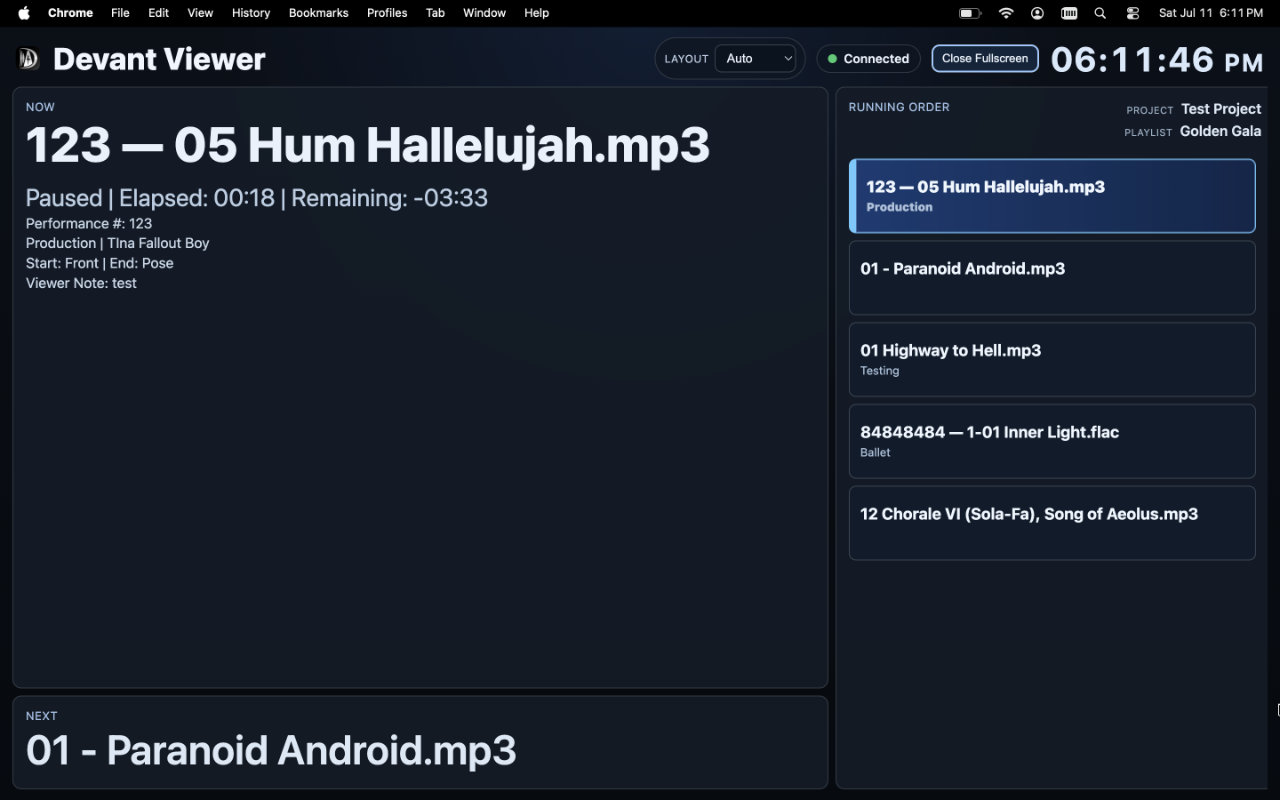
What viewers can see
- Now Shows the current track or cue, its playback state, timing, and the most useful track metadata for the event.
- Next Shows the next upcoming track or cue so backstage teams can prepare before the current item ends.
- Running Order Shows the current track at the top followed by the remaining upcoming items. Viewer users cannot reorder or control playback.
- Connection state Shows whether the viewer is live, reconnecting, stale, disconnected, or waiting for the host to return. The operator remains the source of all show control.
Join a viewer room
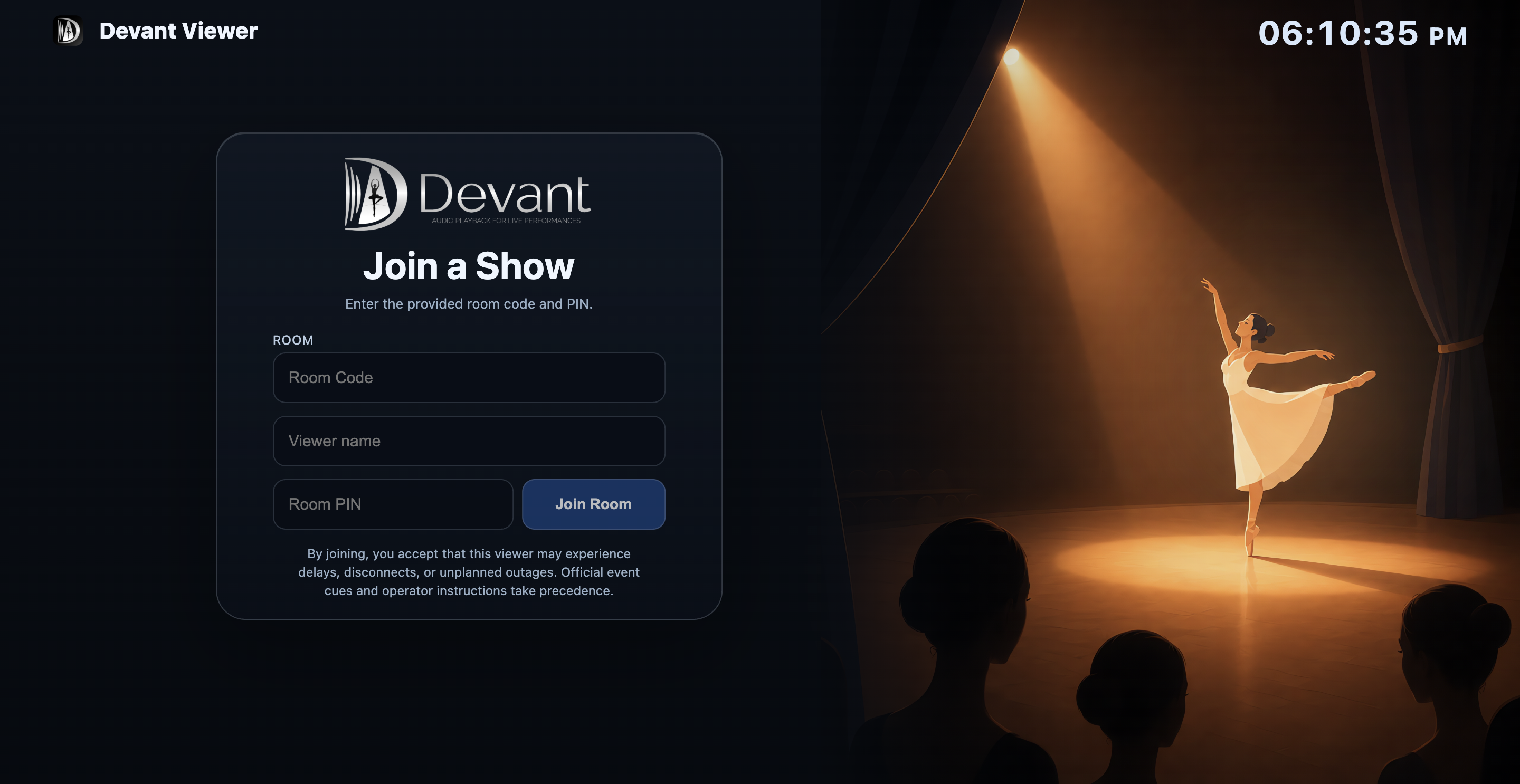
- Open the shared viewer link, scan the room QR code, or visit viewer.devant.app.
- Enter the room code provided by the operator when it is not already included in the link.
- Enter the name you want the operator to see in the participant list.
- Enter the room PIN when the room requires one, then select Join Room.
Result: The viewer changes to the read-only show display and the operator can see the participant connection.
If the host disconnects
Cloud rooms accept new viewers only while the Devant desktop host is available. When the host stops publishing, new joins are unavailable until it reconnects and joined viewers show Host disconnected while the room is recovering.
If the host returns within three minutes, joined viewers resume automatically. If it remains offline longer, the viewer returns to the join screen and keeps a Host disconnected message until it is dismissed, the page is refreshed, or another room is joined.
Choose a display layout
The viewer uses Auto by default. It selects a signage-oriented layout for suitable large landscape displays and a compact layout for phones and smaller screens. You can manually select Signage or Mobile when a particular display needs a different presentation.