
Backstage Viewer
Set Up the Cloud Viewer
Share current and upcoming show information through a secure room that staff and chaperones can join from their own devices.
Choose Cloud hosting, start a room, then share a deep link, QR code, or room code. When the room has a PIN, share that separately with the people who need access.
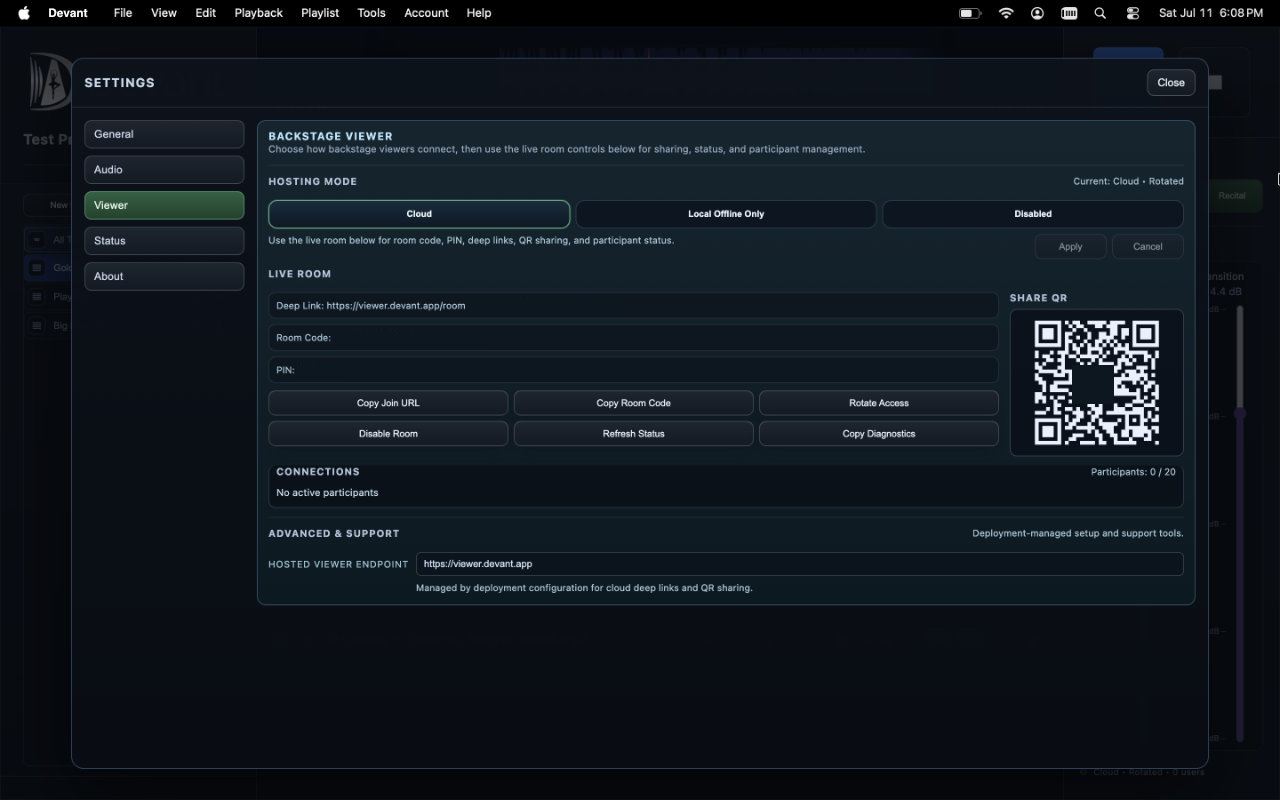
Start a room
- Open the Tools menu, select Settings, and choose Backstage Viewer.
- Under Hosting Mode, select Cloud, then select Apply.
- In Live Room, select Start Viewer and confirm the room status is Live.
- In Live Room, confirm the room code and whether a room PIN is required.
Result: The Live Room section shows the join information, QR code, and connected-participant count.
Share cloud access
A viewer can open the deep link or QR code directly. They can also open viewer.devant.app and enter the room code manually. A deep link is convenient, but it does not replace a required PIN.
- Share the deep link, QR code, or room code with the intended backstage group.
- When a PIN is shown in Live Room, share the PIN through the same trusted backstage channel.
- Ask viewers to enter their own name so the participant list is useful to the operator.
Manage access
Use the room controls to rotate access, disable the room, or remove a participant when needed. Rotating access invalidates the previously shared room access details. Treat the room code and PIN as backstage information, not public event promotion.
Read the participant roster
The Connections section shows the people who have joined the Cloud room. The participant count reflects currently active viewer connections and the room limit shown in Live Room.
- Active The device has checked in recently and is currently using a live viewer connection.
- Away The device is not currently connected. It does not count as an active participant, but its room membership remains available for up to 15 minutes so the same viewer session can return without creating a new participant entry.
- Rename Changes the name shown in the current room roster. It does not change the name the viewer entered for future rooms.
- Kick Ends the current viewer session. A removed person can join again with valid current room details, so rotate access when the room details themselves should change.